/settings - Modules & notifications
/settingsis the control panel: what the bot screens for, how it notifies you, and how it sizes and frames everything.
What it does
/settings opens your control panel. Notification muting is available on every tier; the
rest of the controls (modules, signal types, quiet hours, risk, markets, position size,
trader profile) are Premium.
How to use
/settings
The panel renders as an inline keyboard. Each row opens a sub-screen with a short description and toggle, and a ← Back button returns you here.
What you see
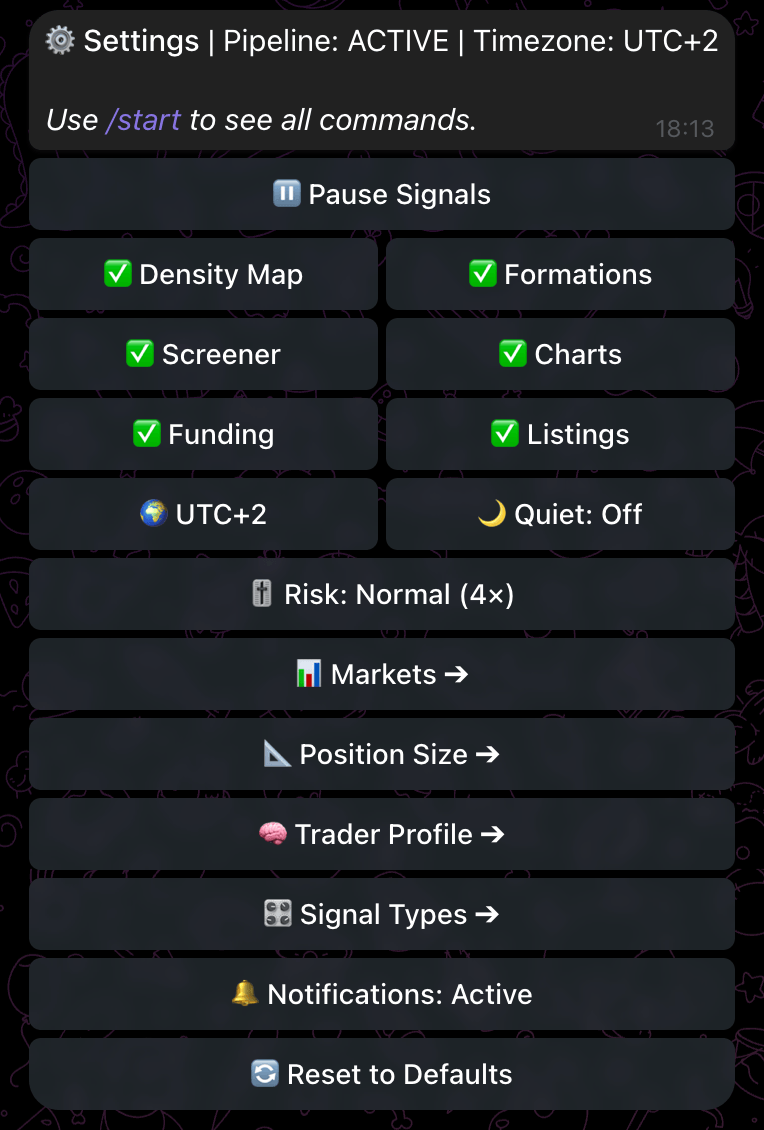
Signal modules (toggle on/off, each with an info screen):
- Density Map, Formations, Screener, Charts, Funding, Listings.
Delivery & framing:
- 🌍 Timezone - pick your UTC offset; all timestamps render in it.
- 🌙 Quiet Hours - a start/end window during which alerts are held.
- 🎚 Risk Profile - Aggressive (3×), Normal (4×) or Safe (5×); scales the bot's stop/target geometry.
- 📊 Markets - enable Crypto, Equity and/or Commodity universes (Premium; locked to Crypto on Free/lapsed).
- 📐 Position Size - set account capital and per-trade risk so every plan shows an exact size (see Understanding an Alert). Capital is never echoed in chat.
- 🧠 Trader Profile - your style and weak spots, used by /psy.
- 🎛 Signal Types - turn individual signal types on or off.
Other:
- 🔔 Notifications: Active / Muted - mute or unmute all pushes.
- 🔄 Reset to Defaults - restore module/signal/risk defaults (timezone and quiet hours are preserved), behind a confirmation.
Tips
- Set Position Size and Timezone first - they make every alert more usable immediately.
- Use Quiet Hours instead of muting if you only want silence overnight.
- Trimming Signal Types and modules is the cleanest way to cut noise to just the setups you trade.
Related
- /premium - unlock the Premium-gated settings
- /psy - uses your Trader Profile
- Understanding an Alert - where position size appears